Zero Stock Item Report
Lists the pharmacy items that have zero stock in one department right now. Use it to see what a pharmacy or store has run out of and needs to reorder or request.
Page: Pharmacy → Pharmacy Analytics → Stock Reports → Zero Stock Item Report
Shown when: the configuration option Pharmacy Analytics - Show Zero Stock Item Report is on.
Filters
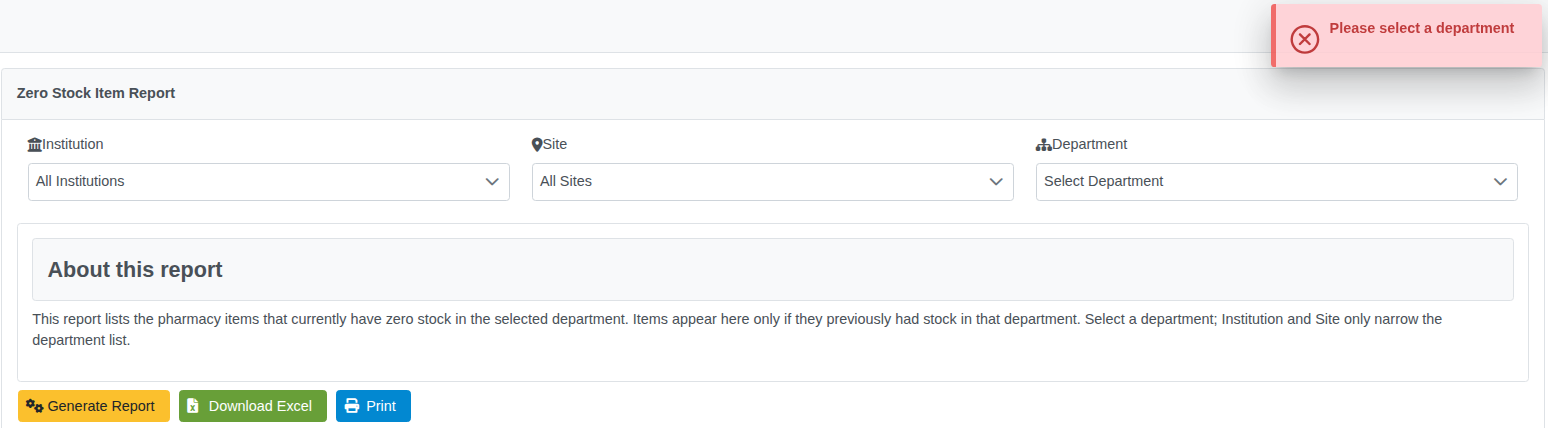
The Department list starts at "Select Department". Generating the report without one shows "Please select a department".
| Filter | What it does |
|---|---|
| Institution | Narrows the Department list to that institution's departments. |
| Site | Narrows the Department list to that site's departments. |
| Department | Required. The report lists items with zero stock in this department. |
There is no "All Departments" option. To check several departments, run the report once for each.
What is listed
- One row per item (Code, Item) whose total stock across all its batches in the selected department is zero.
- An item appears only if it has had stock in that department before. Items that were never stocked there are not listed.
- Download Excel and Print output the same list, with the selected institution, site and department in the header.
Why there is no "All Departments" option
Earlier versions allowed Department = All. That mode listed only items whose stock was zero in every department combined. As a result, a single department could show more zero-stock items than "All", which was confusing. The option was removed in issue #20010.