Issue for order requests
1. Search the list of requests
- Select the date range
- Enter the order number and/or from department (Optional)
- Press the "Search" button
A list of requests will appear
Request status
The Status column shows where each request stands:
- Open: the request is still waiting to be issued, fully or in part.
- Fully Issued: every requested item has been issued.
- Cancelled: the request was cancelled. The date, time and the user who cancelled it are shown under the tag. A cancelled request stays in the list so its history is not lost, and its Issue button is disabled.
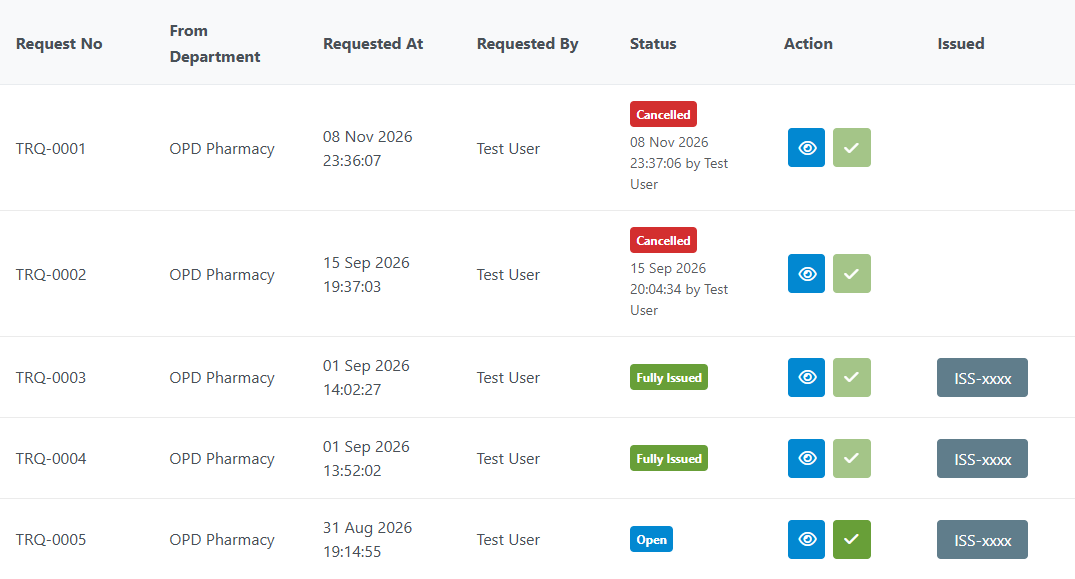
Cancelled requests stay in the list with a red Cancelled tag; the Issue button is greyed out for them.
Issued column
The Issued column lists every issue made against the request. Click an issue number to open that issue.
- A grey button is an issue that is still valid.
- A red button is an issue that was cancelled later. It stays in the list so you can see that the issue was made and then cancelled.

The first issue was cancelled, so it shows in red; the second issue is still valid.
- Select the request
- Press the "Issue" button
-
Issue the items
- Enter the quantity of each item that you are issuing.
- If you want to remove any items from the request item list select the "Remove" button
- By selecting an item you can also see the history of the item including stock and sales. (You can adjust the date range of the history as necessary.)
- Enter the name of the staff issuing the items.
- Press the "Issue" button.
-
Print the issued bill
Save → Finalize → Approve workflow (optional)
When the configuration option Use Save Finalize Approve Workflow for Issue for Requests is switched on, issuing runs as three steps instead of one: Save Draft on the issue screen, then Finalize and Approve from Pharmacy → Disbursement → Issues → Finalize Issues / Approve Issues. Stock only moves at Approve.
Only one pending draft is allowed per department at a time. If a draft is saved and then left without being finalized or cancelled, the next attempt to issue for any request in that department is stopped with:
There is already a pending fast issue for this department. Finalize or approve it from Disbursement → Issues → Finalize/Approve Issues, or cancel it in the list shown below if it was started by mistake.
The blocking draft is now listed directly on the request page with a Cancel Draft button (needs the Pharmacy Transfer Issue Cancel privilege), so it can be cleared without hunting for it:
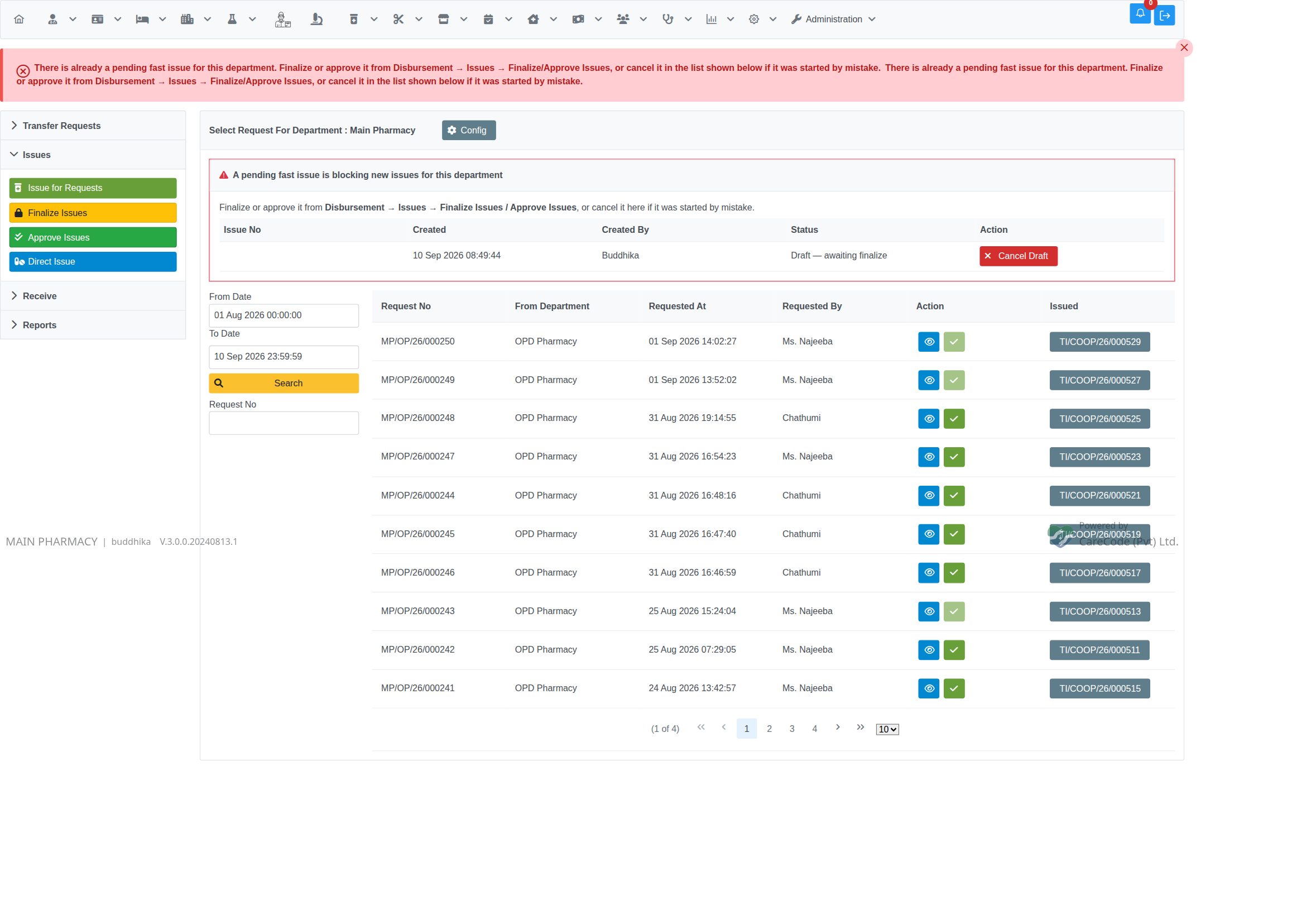
The pending draft that is blocking new issues is listed with its creator and status; Cancel Draft retires it so a new issue can start.
The Finalize Issues and Approve Issues recovery screens open with their date filter already set to the last year (not just today), so an old forgotten draft is visible without changing the dates:
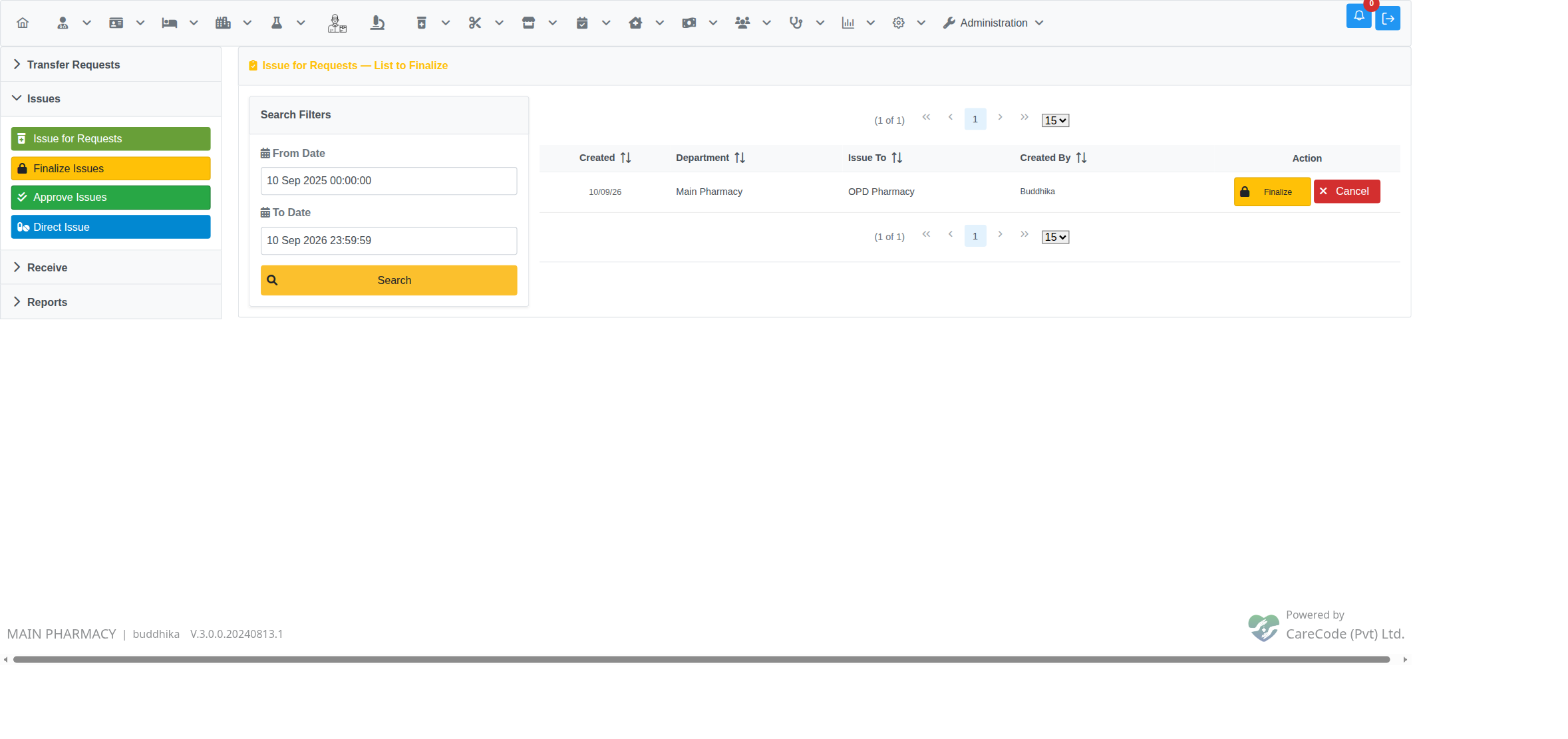
Finalize Issues opens with a one-year From Date so older pending drafts are listed straight away.