IOU Bills
Introduction
An IOU (I Owe You) bill is used when a service is rendered but the payment is deferred internally — for example, when a staff member receives a service and pays later through salary deduction. IOU bills are tracked separately from patient credit and must be settled or converted to cash.
Navigation
Payments → Financial Transaction Manager → Float Management tab
Issuing an IOU
- Navigate to
cashier/iou_bill.xhtml. - Select the recipient (staff member or internal party).
- Enter the amount and reason.
- Select the associated bill reference if applicable.
- Click Save. An IOU bill is created.
- Reprint if needed:
cashier/iou_bill_reprint.xhtml.
Settling an IOU
When the money for an IOU comes back:
- Go to Payment Management and click Settle IOUs. Available IOUs lists your open IOUs.
- Tick the IOU(s) being settled.
- Under Add Funds, choose Cash as the Payment Method, enter the amount and click Add. The fund appears in the Funds List. IOUs can only be settled in cash.
- The funds cannot add up to more than the selected IOUs. If they would, Add shows "Entered amount cannot exceed the IOU amount. Selected IOUs total …" and the amount is not added.
- Click Settle. The funds must equal the selected IOUs' total, or Settle refuses with "Settling Total and Payment Totals do not match". On success, "IOU Settled Successfully" is shown, the settlement bill appears and the IOUs leave the open list.
Settlement bill numbers
Settlements have their own number series, and their numbers contain IOUS, for example RMHMMHP/IOUS/26/000002. To use different letters, an administrator sets Bill Number Suffix for IOU_SETTLE under Administration → Manage Institutions → Preferences → Application Options.
What settling does to your drawer
Issuing an IOU takes cash out and adds the same value to IOU. Settling reverses it: IOU goes down and cash goes up. The drawer's total does not change in either case.
In My Drawer History, each settlement shows as Iou Cash Settle, with one IOU row (minus) and one Cash row (plus). Adding cash in two steps gives two Cash rows.
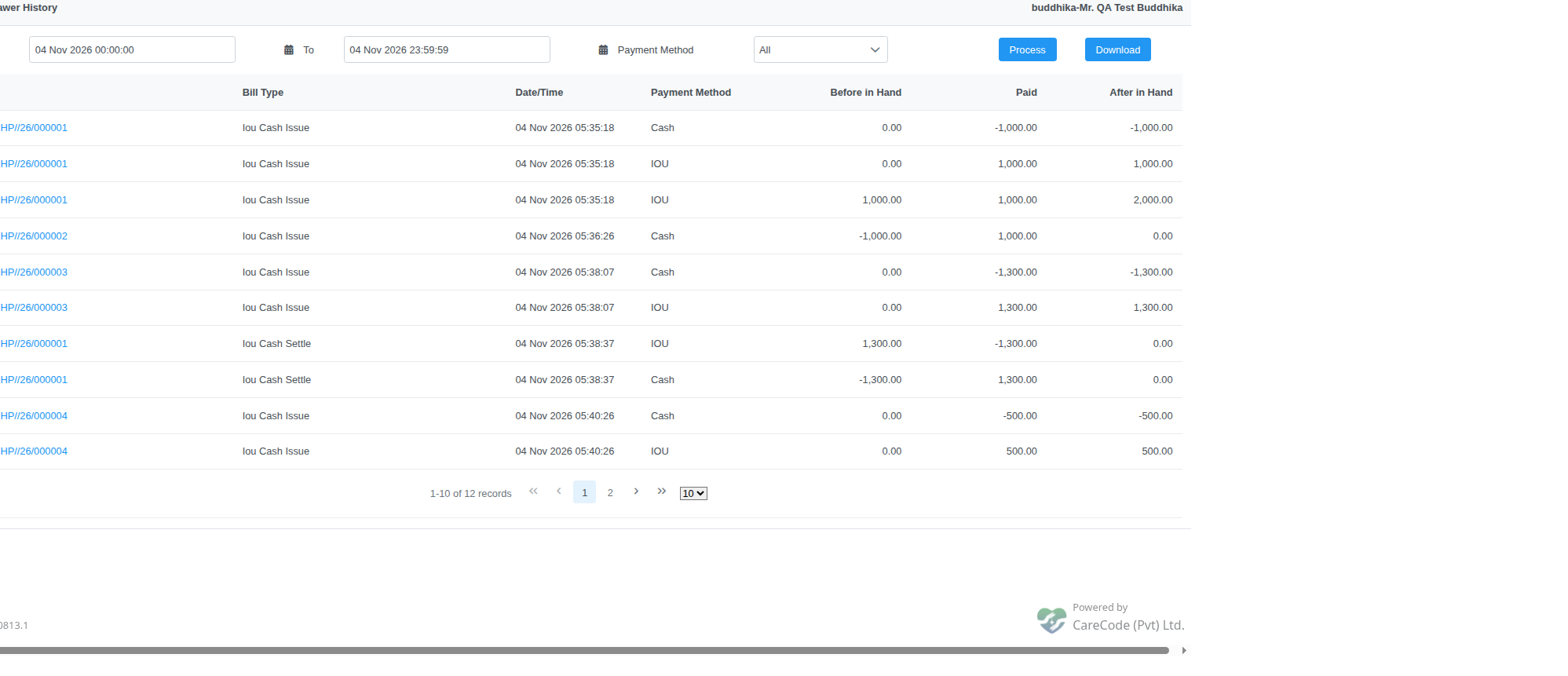
An IOU of 1,300: the issue rows take cash down and IOU up, and the Iou Cash Settle rows reverse them.
Settlements made before this change are listed as Iou Cash Issue, and their IOU row shows as a plus on the issue bill. Their drawer balances are correct.
Reprinting a settlement
In My Drawer History, click the bill number on an Iou Cash Settle row. The reprint shows Duplicate and has a Print button.
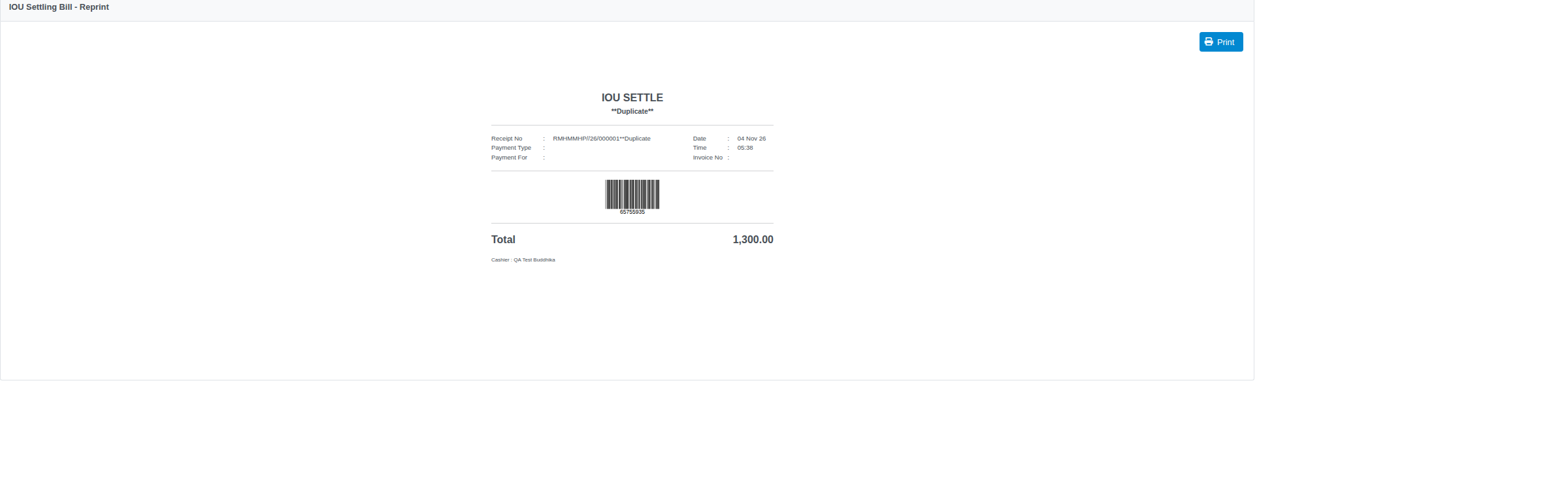
The reprint of an IOU settlement. The total is printed without a sign.
Converting IOU to Cash
- In the Float Management tab, click Convert IOU to Cash.
- The system opens
cashier/convert_iou_to_cash.xhtml. - Select the IOU bill to convert.
- Confirm the cash amount received.
- Click Save. A conversion record is created.
Viewing IOU Conversions
In the Float Management tab, click My IOU Conversions → cashier/my_iou_conversions.xhtml. Click any entry to view detail at cashier/view_iou_conversion.xhtml.
Technical Reference
| Item | Detail |
|---|---|
| Controller | IouBillController |
| IOU bill page | cashier/iou_bill.xhtml |
| Settle page | cashier/settle_iou.xhtml |
| Convert to cash | navigateToConvertIouToCash() → cashier/convert_iou_to_cash.xhtml |
| My conversions | navigateToMyIouConversions() → cashier/my_iou_conversions.xhtml |
| BillType | IouIssue, IouSettle |