Pharmacy Return — Items Only
- Search and Find the bill which needs to be returned
Then select the return button under actions
- Enter the returning quantity
When you leave the Return Qty box, that row updates straight away: Return Value shows the amount being returned (rate × return quantity), Status changes to To Return (or back to Not Selected for 0), and Return Total at the top changes to match. Rows you have not selected show a Return Value of 0.00.

-
Enter a comment
-
then select "Return" to return the items and the payment
Note: Returns are subject to a day limit. Recent sales can be returned freely; older sales may require supervisor approval, and very old sales cannot be returned at all. See Retail Sale Return — Day Limit and Approval for details.
Note: The returning quantity cannot be negative or exceed the item's remaining returnable balance. Entering an invalid value resets the field to 0 with an on-screen error message.
Printed Return Bill — Rate Column
The printed/previewed return bill's RATE column always shows the item's original, pre-discount unit rate — the same rate the item was sold at. The VALUE column is the actual amount refunded for the returned quantity, after any discount that applied to the original sale.
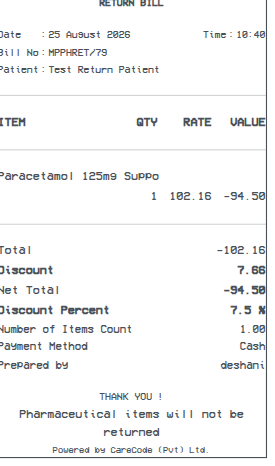
In the example above, the item was originally sold at 102.16/unit with a 7.5% discount; returning it shows RATE = 102.16 (original) and VALUE = -94.50 (net of discount) — the discount itself appears separately on the "Discount" line.