Paying a Doctor (Channel)
The Pay Doctor function processes payment of the consultant's share of channelling fees. It consolidates the doctor's earnings from one or more sessions into a payment bill.
Navigation
Channelling → Payment → Pay Doctor
Path: /channel/channel_payment_staff_bill
Requires the ChannellingPaymentPayDoctor privilege.
How Doctor Payments Work
When a patient pays a channel booking fee, the bill records:
- The hospital fee portion (retained by the hospital)
- The doctor fee portion (owed to the consultant)
The doctor's cumulative unpaid fees accumulate and are visible in the Payment Due Search. The Pay Doctor screen is used to settle these dues by creating a payment bill.
Paying a Doctor
Step 1 — Select the Consultant
In the Pay Doctor screen:
- Select the Speciality.
- Select the consultant in the Staff field.
- Optionally tick Consider Date and set From Date / To Date, or pick a Session.
- Click Process.
You can also open this screen from Payment Due Search: click Pay on a row and the screen opens with that consultant's dues already listed.
Step 2 — Select the Bookings to Pay
The screen lists each booking whose doctor fee is still unpaid:
| Column | Content |
|---|---|
| Bill ID | The channel booking bill |
| Appoinment No | Appointment number within the session |
| Patient | Patient name |
| Refundable / Absent / Cancel / Refund | Booking status flags |
| Appoinment Date | Session date |
| Charge | Doctor fee for the booking |
| Amount to Pay | Amount to pay now (defaults to the unpaid balance) |
Tick the bookings to include in this payment.
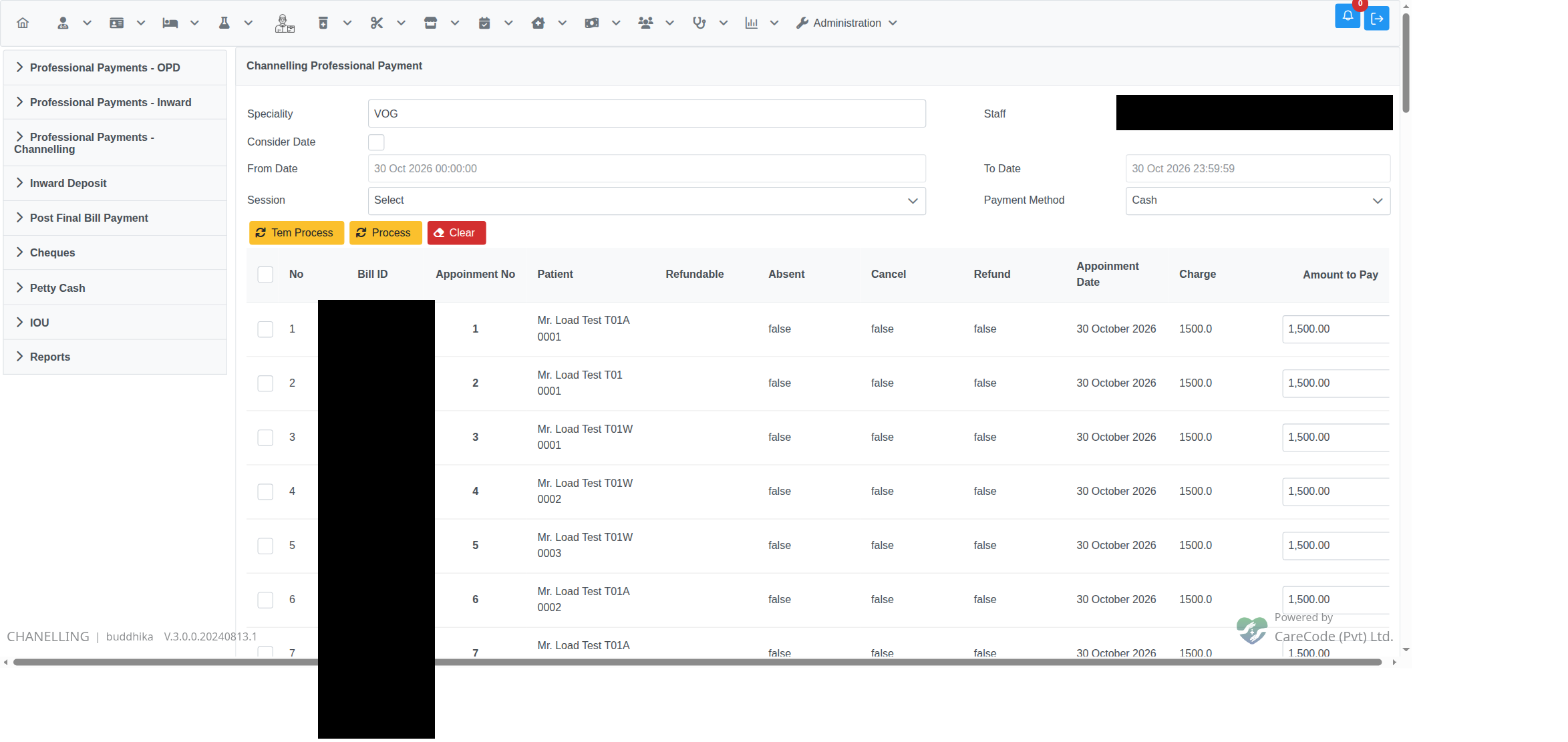
Pay Doctor after Process: every unpaid booking up to today is listed, whether or not it is marked completed (setting off).
Which bookings are listed
Bookings that are cancelled, refunded or already fully paid are never listed. Bookings with an appointment date after today are not listed either.
The application option Only Show Completed Channel Bookings On Doctor Payments decides whether the doctor can be paid before the patient is seen:
| Setting | Pay Doctor and Payment Due Search show |
|---|---|
| Off (default) | All unpaid bookings up to today |
| On | Only bookings marked completed in the session (Channel Booking → session → Manage Booking) |
The same option applies to Payment Due Search and to session-wise payment. On Pay Doctor and session-wise payment, a patient marked absent in a non-refundable session is always listed, because the doctor is still paid for that booking. With the option on, Payment Due Search does not list those absent bookings, so open Pay Doctor for the consultant to see them. An administrator changes the option in Administration → Manage Institutions → Preferences → Application Options.
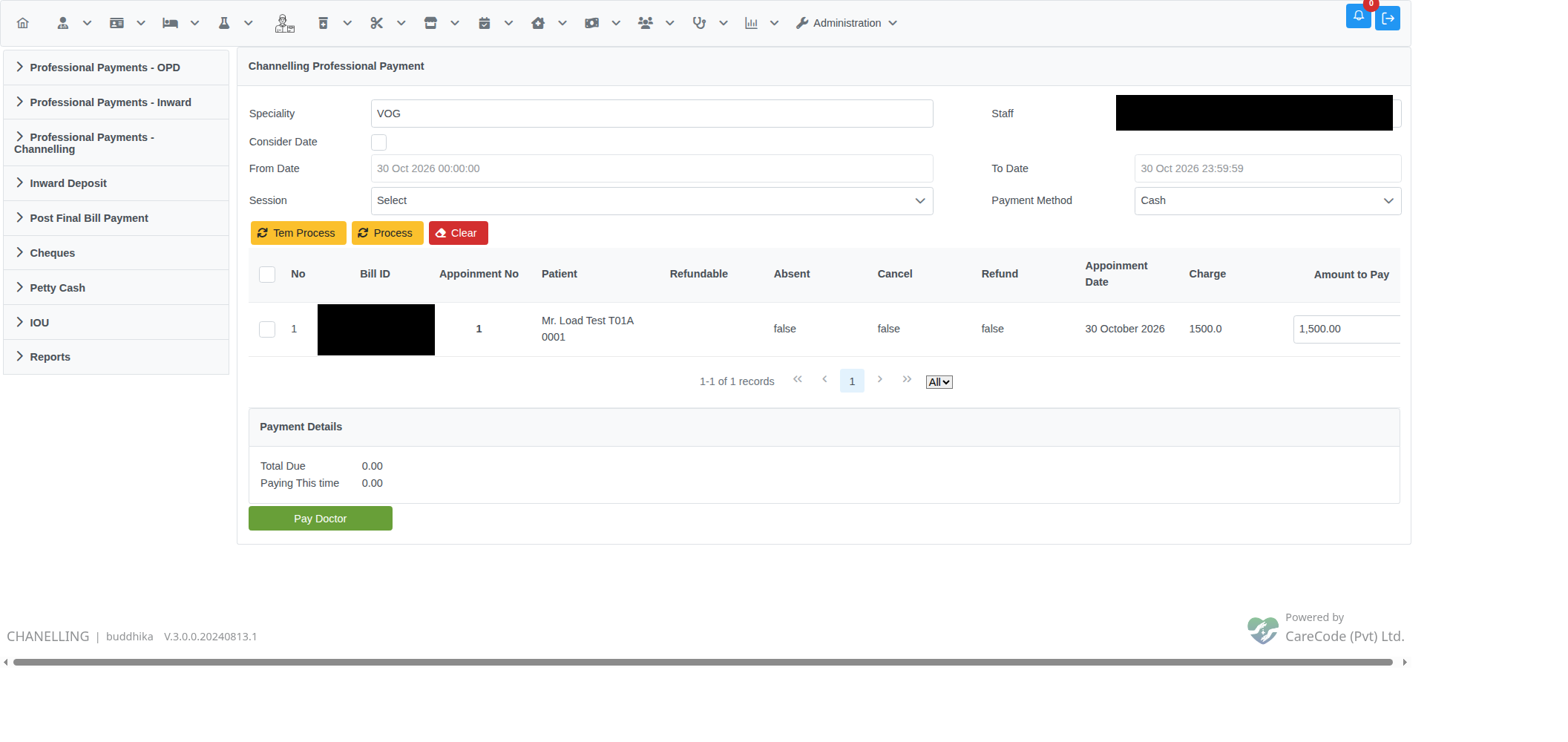
With the option on, only the booking marked completed in the session is listed.
Step 3 — Set Payment Details
| Field | Description |
|---|---|
| Payment Method | Cash, Card, Cheque, Slip or eWallet |
| Payment details | Reference fields for the chosen non-cash method |
Step 4 — Create the Payment Bill
Click Pay or Create Payment Bill. The system:
- Creates a
BillType.ChannelStaffPaymentbill recording the payment - Links it to the selected sessions/bookings
- Marks those sessions as paid
- Generates a printable payment summary for the doctor
Payment Due Search
Channelling → Payment → Payment Due Search
Lists the bookings whose doctor fee has not yet been paid, filtered by date range, bill number, patient, speciality, doctor or charge. It follows the same Only Show Completed Channel Bookings On Doctor Payments rule as Pay Doctor. Click Pay on a row to open Pay Doctor for that consultant.
Payment Done Search
Channelling → Payment → Payment Done Search
Lists all completed doctor payment bills. Use this to verify that a doctor has been paid for a specific period, or to reprint a payment summary.